
Starpeer UC · Phone portal · Office Manager
Set your holiday hours once.
Your main number picks a greeting by the date and time of each call. Put your holidays and closures on a schedule, give each one its own greeting, and the right message plays without anyone touching the phones.
How it works
Every greeting belongs to a time frame.
Your main number goes to an auto attendant, the menu that answers calls. A time frame is a named schedule, such as "Open Hours" or "Holidays". Each greeting you add to the attendant is tied to one time frame, and plays when a call comes in during it. Your menu options play after the greeting.
Two time frames can match at once. A holiday on a Monday is inside both "Holidays" and "Open Hours". Before you rely on a new holiday greeting, call support and we'll confirm which one your system plays first.
Who can change it
Anyone with an Office Manager login to the Starpeer portal. If your menu shows only Messages, Answering Rules and your own settings, ask VanBelkum to upgrade one person's login.
Where to sign in
The Starpeer phone portal, with the same login you use for voicemail and call history. Office Manager tools are in the menu down the left side.
Step 1 · once a year, or once ever
Put your holidays on the schedule.
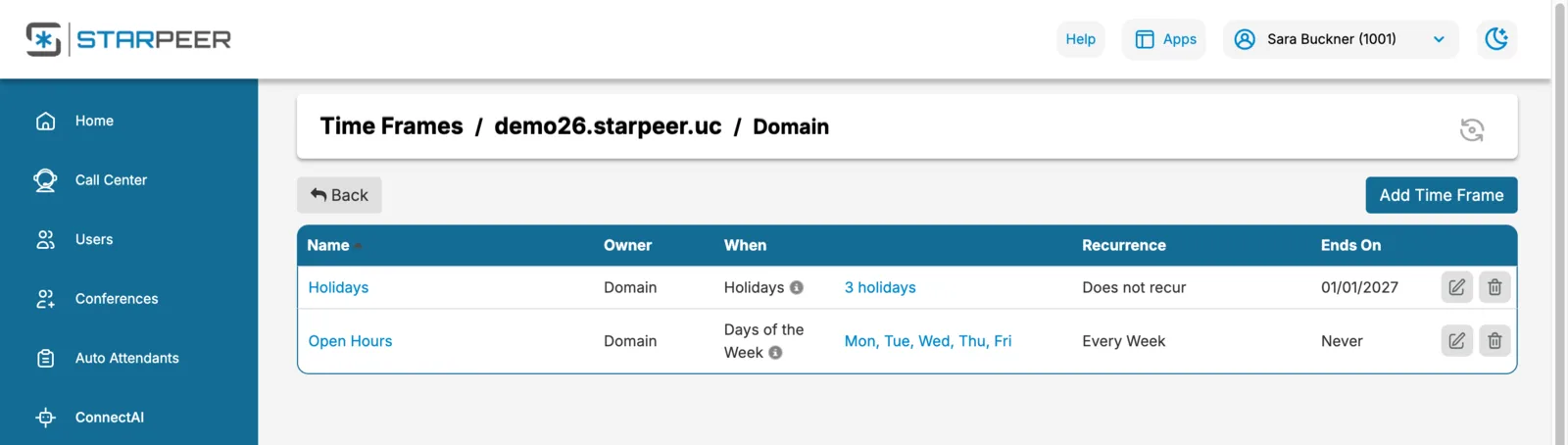
- In the left menu, click Time Frames, then click Domain. That's the list of schedules shared by your whole office.
- If you already have a "Holidays" time frame, click its name to edit it. Otherwise click Add Time Frame, type the name (it can't be changed later), choose Holidays and click Next.
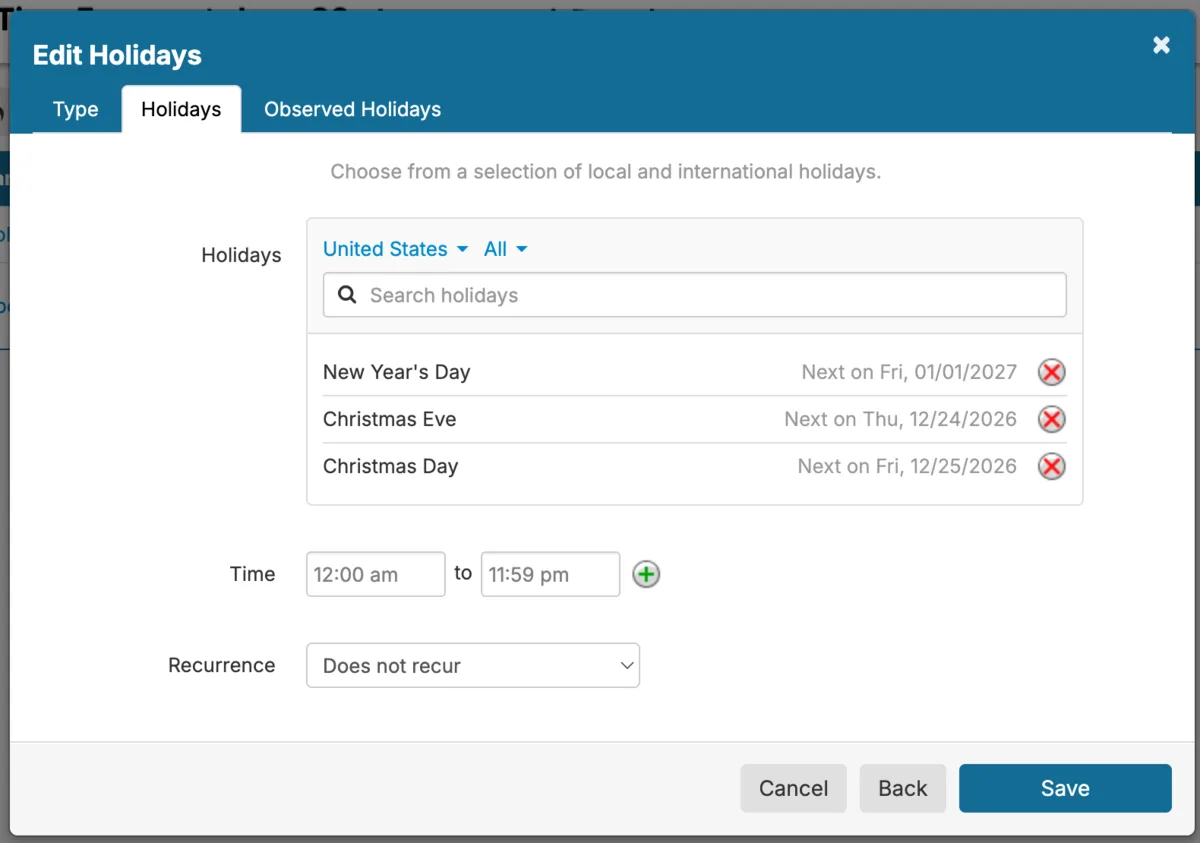
- On the Holidays tab, search for each holiday your office closes and click it to add it. Leave the time at 12:00 am to 11:59 pm for the whole day.
- Set Recurrence to Yearly on selected holiday, so it comes back every year.
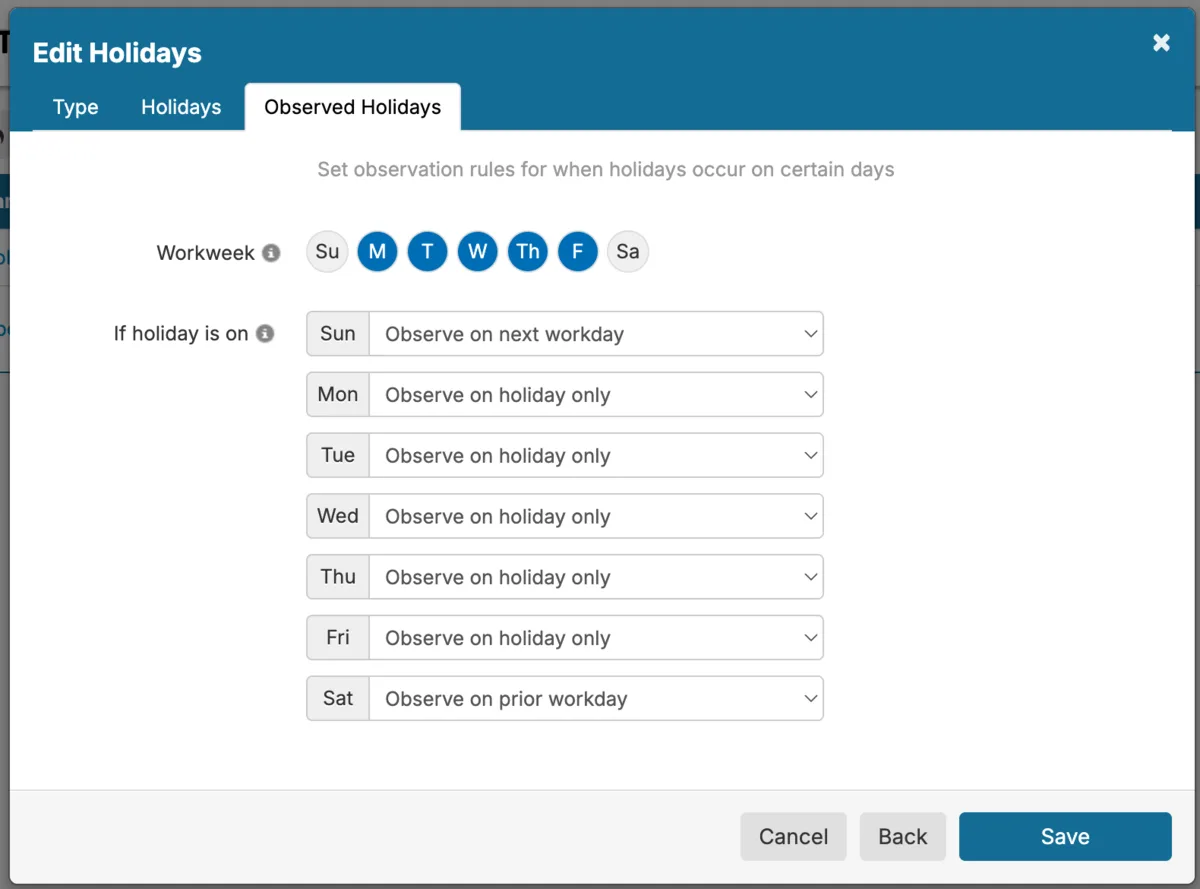
- On the Observed Holidays tab, choose what happens when a holiday lands on a weekend, such as closing the Friday before or the Monday after.
- Click Save.
For a one-off closure such as a staff training day or a vacation week, choose Specific Dates instead. Enter the start and end date and time, click +, leave Recurrence at Does not recur, and save.
A time frame does nothing on its own. Step 2 gives it a greeting.
Step 2
Give each time frame its greeting.
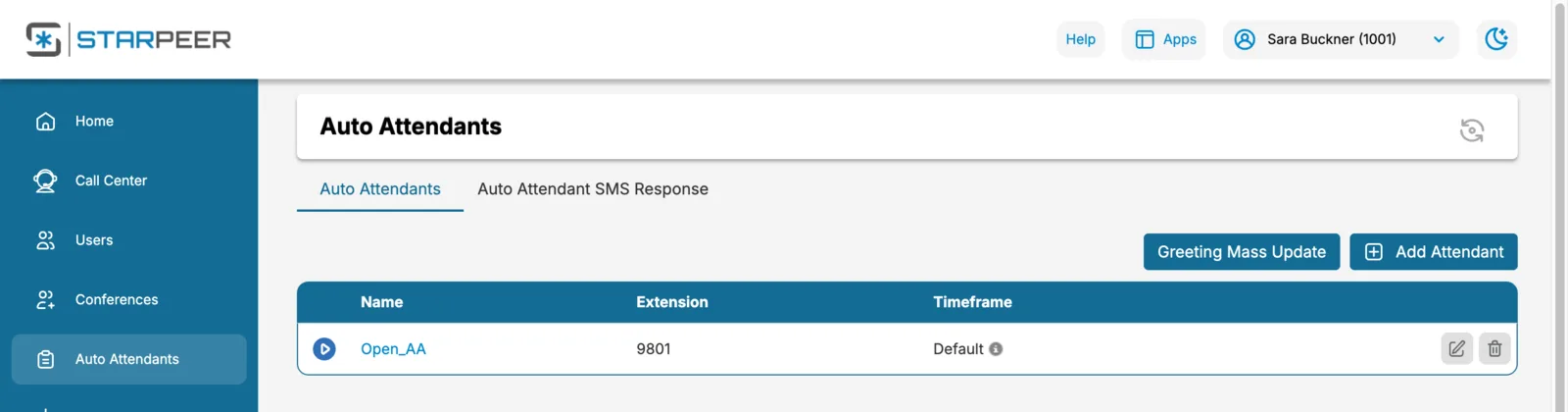
- In the left menu, click Auto Attendants, then click your main attendant's name.
- Click the speaker icon next to Intro Greetings, then Add Greeting.
- Pick how to make it:
- Text-To-Speech: type the message, choose a voice, and press play beside the voice to hear it.
- Upload: an audio file you recorded elsewhere.
- Record: enter your extension or cell number under Call me at and click Call. Answer, and record after the prompt.
- Under Time Frame, choose the one this greeting is for, such as "Holidays".
- Click Save, then Done.
- Back on the attendant, click Save at the bottom of the page.
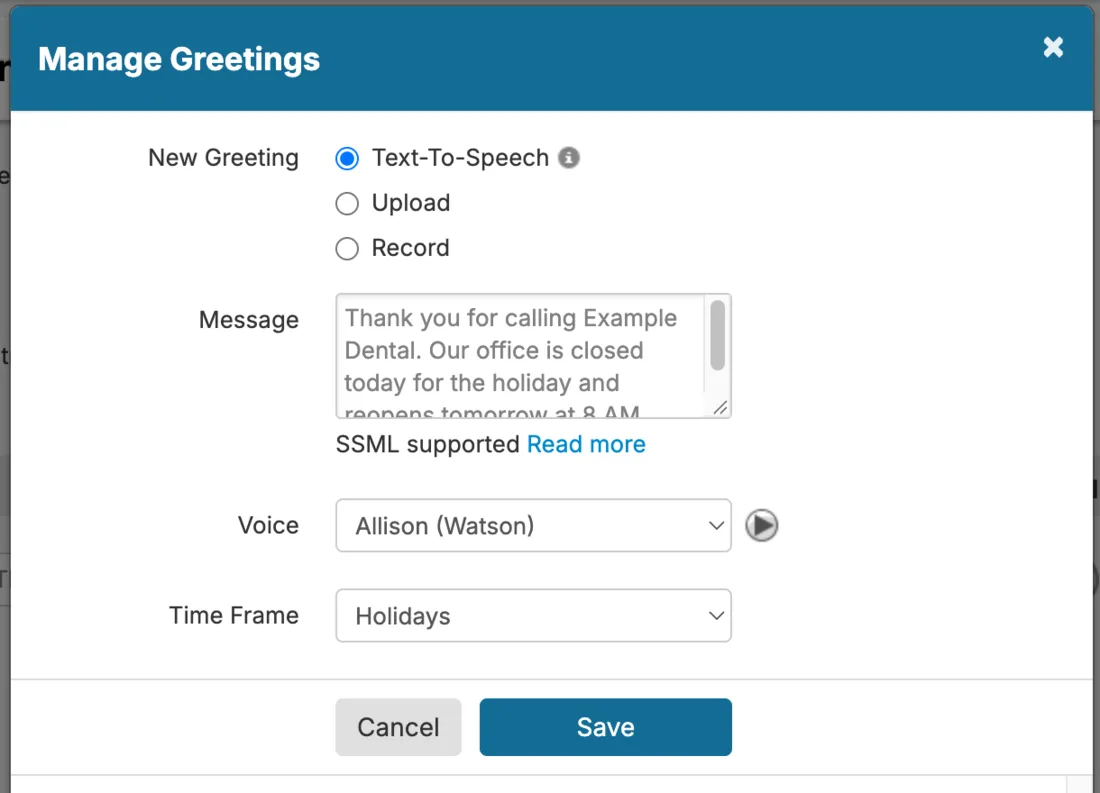
Want callers to go straight to a message on holidays, with no menu? That needs a separate closed attendant. VanBelkum sets it up once, and after that you only change dates.
Snow day, power outage, emergency
Closed today, without notice.
Set this up once, on a normal day, so the emergency only takes a minute.
- Once: add a Specific Dates time frame named "Closed today", and give it a "We're closed today" greeting as in Step 2.
- On the day: open Time Frames › Domain, click Closed today, enter today's date and times, click +, and save.
- Call your main number from a cell phone to check.
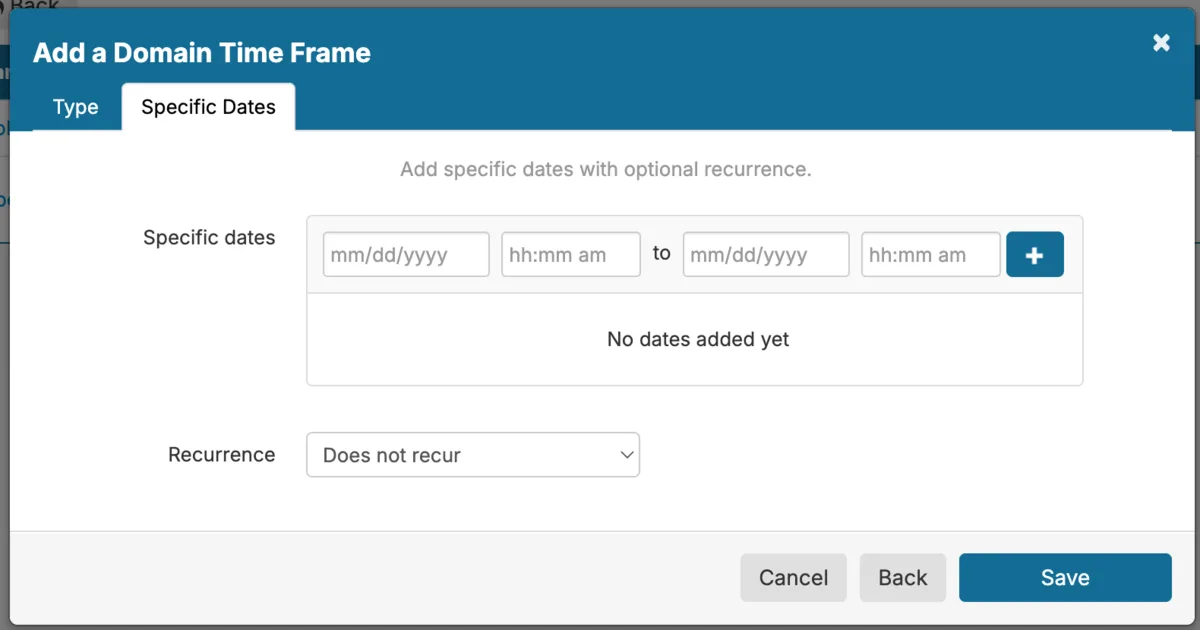
Because it does not recur, it stops on its own when the time runs out.
In a hurry? Call VanBelkum support at (616) 301-7676 and we'll switch it for you.
For everyone
Change your own voicemail greeting.
Any user can do this. Useful before a vacation. Office Managers: click your name at the top right, then My Account, first.
- Click Messages in the left menu, then the Settings tab.
- Under Greetings, click the speaker icon next to Voicemail Greeting.
- Click Add Greeting and choose Text-To-Speech, Upload, or Record, the same three ways as above. Save it, then click Done.
- Pick the new greeting in the Voicemail Greeting list and click Save at the bottom of the page.
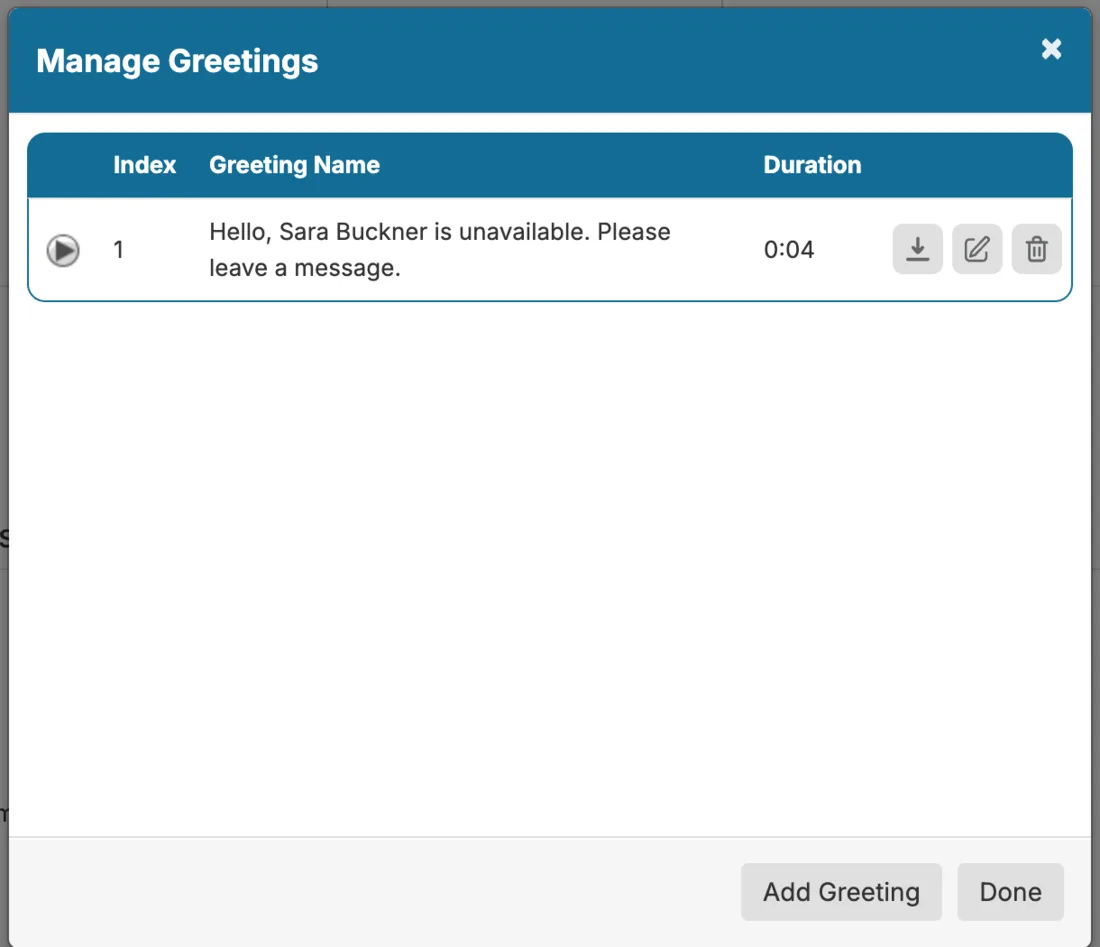
Every time
Check it worked.
- Call your main number from a cell phone, not an office phone. Office phones can skip the greeting.
- Listen to the whole greeting and try one menu option.
- Testing a holiday ahead of time? Call support and we'll confirm it with you.
- Open Call History to see that your test call came in.
Copy and edit
Greetings that work.
Short, with the business name first, and the one thing the caller can do next.
Holiday
Thank you for calling Example Dental. Our office is closed today for the holiday and reopens tomorrow at 8 AM. If you have a dental emergency, press 9. Otherwise, leave a message and we'll call you back.
Closed today
Thank you for calling Example Dental. Our office is closed today due to the weather. If you had an appointment today, we'll call you to reschedule. Please leave a message and we'll call you back.
After hours
Thank you for calling Example Dental. Our office is closed. Our hours are Monday through Thursday, 8 to 5, and Friday, 8 to noon. Leave a message and we'll call you back the next business day.
Want us to set it up?
Send us your hours and holidays, and we'll build the schedule and greetings with you, then walk your team through changing them.