
Log in to your portal
Go to spvoice.starpeer.com and log in with your portal username and password.
Starpeer UC · Desk phonesspvoice.starpeer.com
The buttons on your desk phone can show you when a coworker is on a call, or dial an outside number with one press. This guide shows you how to set up, change and clear those buttons from your Starpeer portal.
Before you start
Your Starpeer portal username and password, for spvoice.starpeer.com.
The coworkers and outside numbers you want on your buttons, in the order you want them.
Saving your buttons can restart your phone. If your computer gets its internet through the phone, it will drop for a minute or two, so save your work before the last part.
Part 1 · Open the button editor
Your buttons live with your phone in the portal.
Step 1 of 4keep scrolling to advance
Go to spvoice.starpeer.com and log in with your portal username and password.
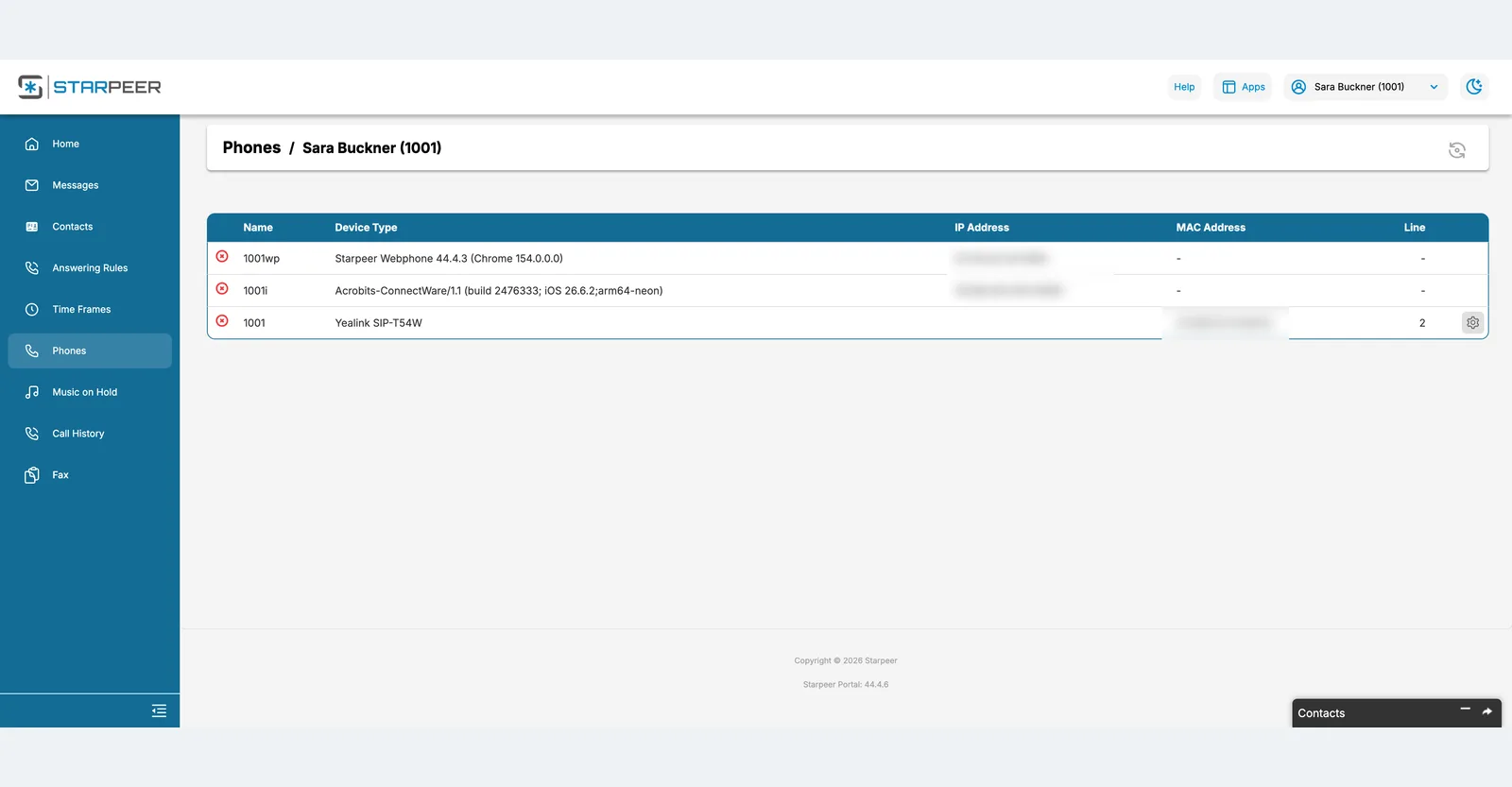
On the left side of the screen, click Phones. You'll see every phone and app on your line.
Find your desk phone and click the settings wheel at the right end of its row. When you hover over it, it says CONNECTbuilder.
Only desk phones have a settings wheel. The WebPhone and the ConnectWare app don't have buttons to set up.
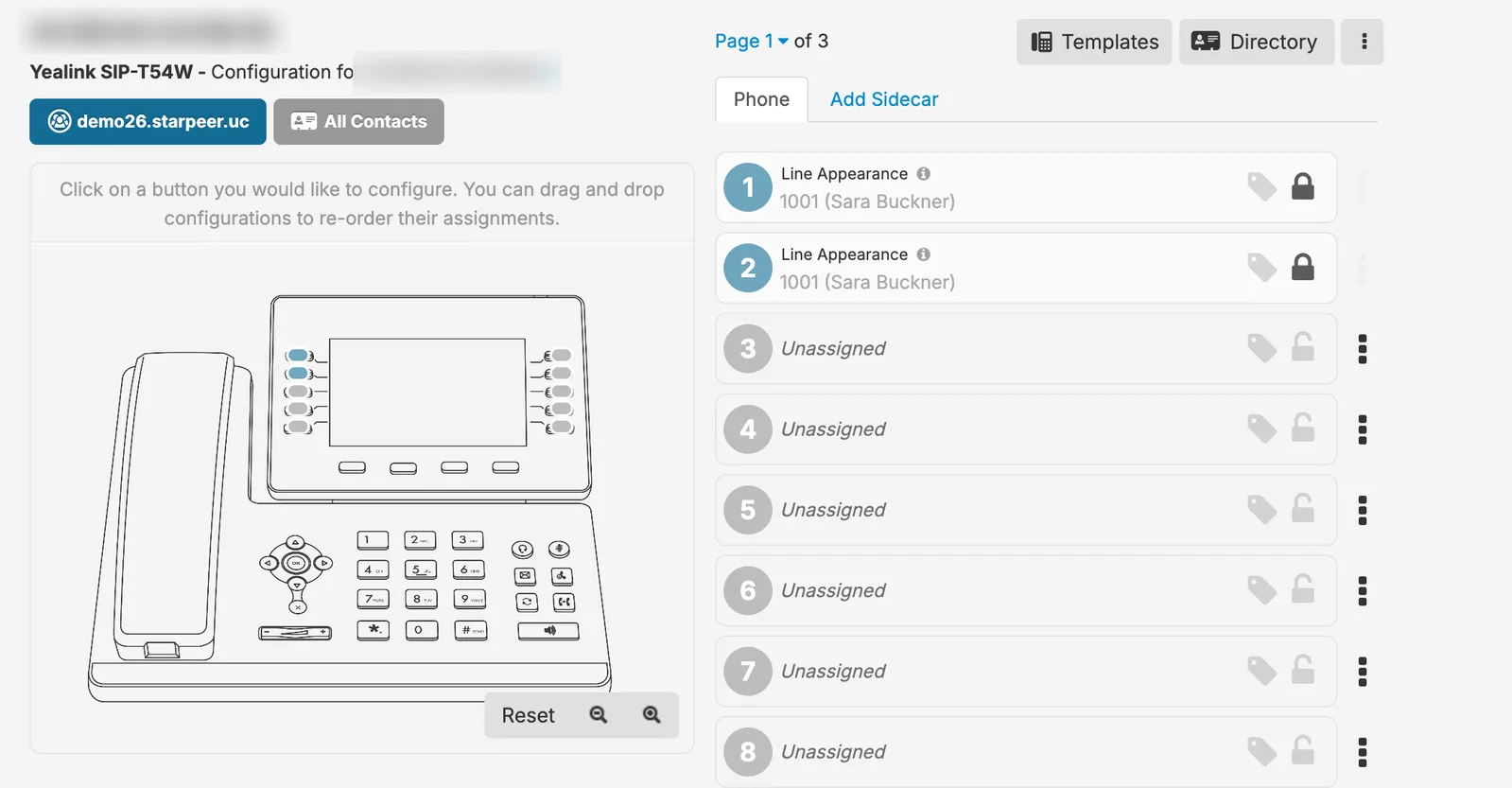
When it asks about editing the button configuration for this phone, click Yes. You'll see a list of your phone's buttons. Any button marked Unassigned is free to set up.
Admins only
Log in to the portal, click Users on the left, then click the person whose buttons you want to change. Click Phones, then click the settings wheel next to their phone and click Yes.
From there, the rest of this guide works the same as it does for your own phone.
Part 2 · Add a coworker button
Use this for anyone in the company with an extension. A light next to their name shows green when they're free and red when they're on the phone.
Step 1 of 4keep scrolling to advance
Click any button marked Unassigned.
Under feature, select User (BLF).
Click the box just below it, the one that says Enter a user name or extension. Type the person's name or extension number, then pick them from the list.
If the person goes by a different name, type it in the Custom label box next to it. That's the name your phone will show.
If the system says "Robert Smith" but everyone calls him "Bob," put Bob in Custom label.
Part 3 · Add a speed dial
Use this for cell phones or any number outside the company. Speed dial buttons don't have a status light.
Step 1 of 4keep scrolling to advance
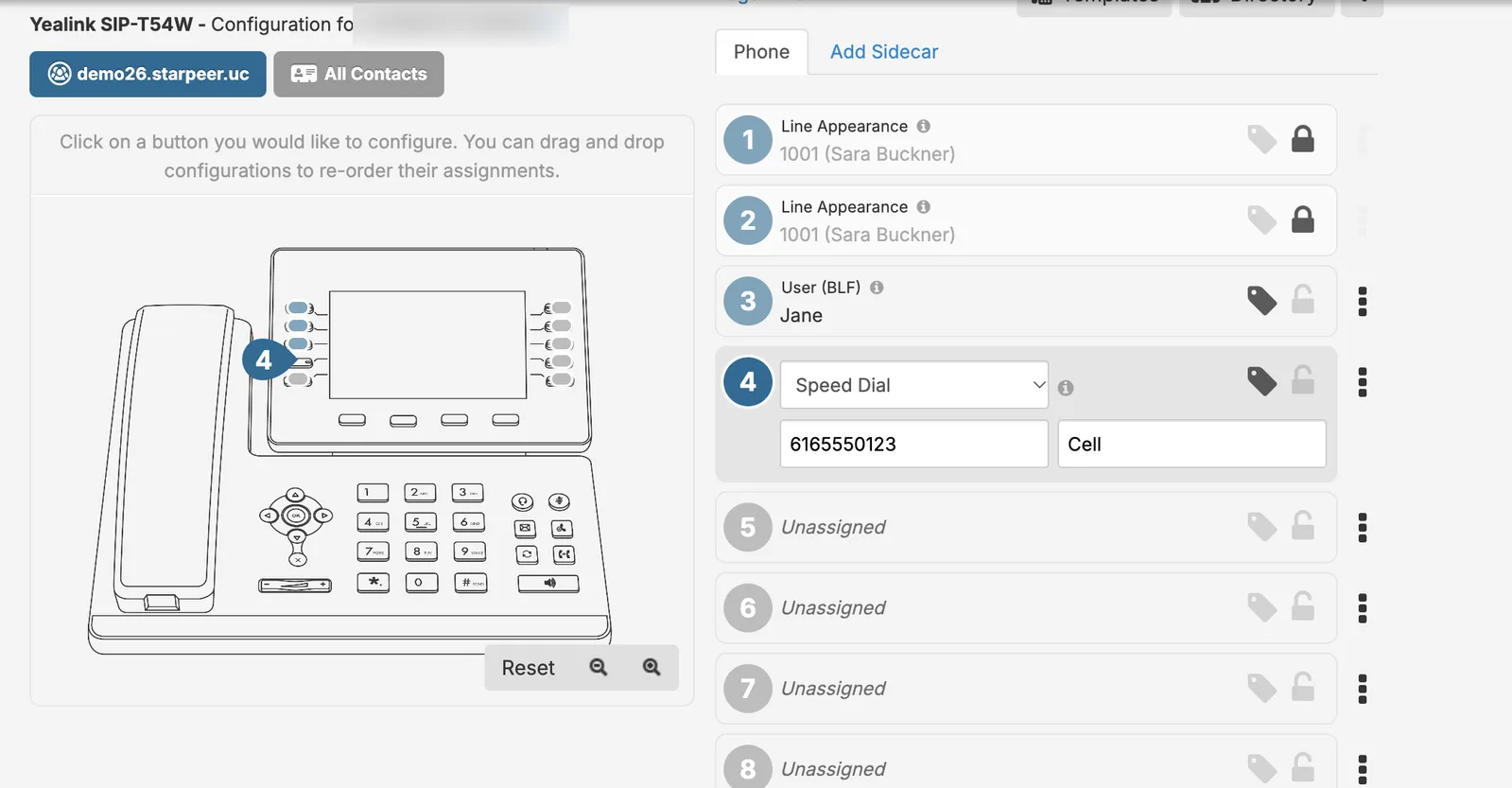
Click any button marked Unassigned.
Under feature, select Speed Dial.
Click the box just below it, the one that says Enter a number. Type the phone number with the area code. You don't need a 1 in front.
Type a name in the Custom label box, like Cell or the person's name. That's what your phone will show.
Part 4 · Change or clear a button
You can only set up a button that says Unassigned. To change a button that's already in use, clear it, then follow Part 2 or Part 3.
Step 1 of 2keep scrolling to advance
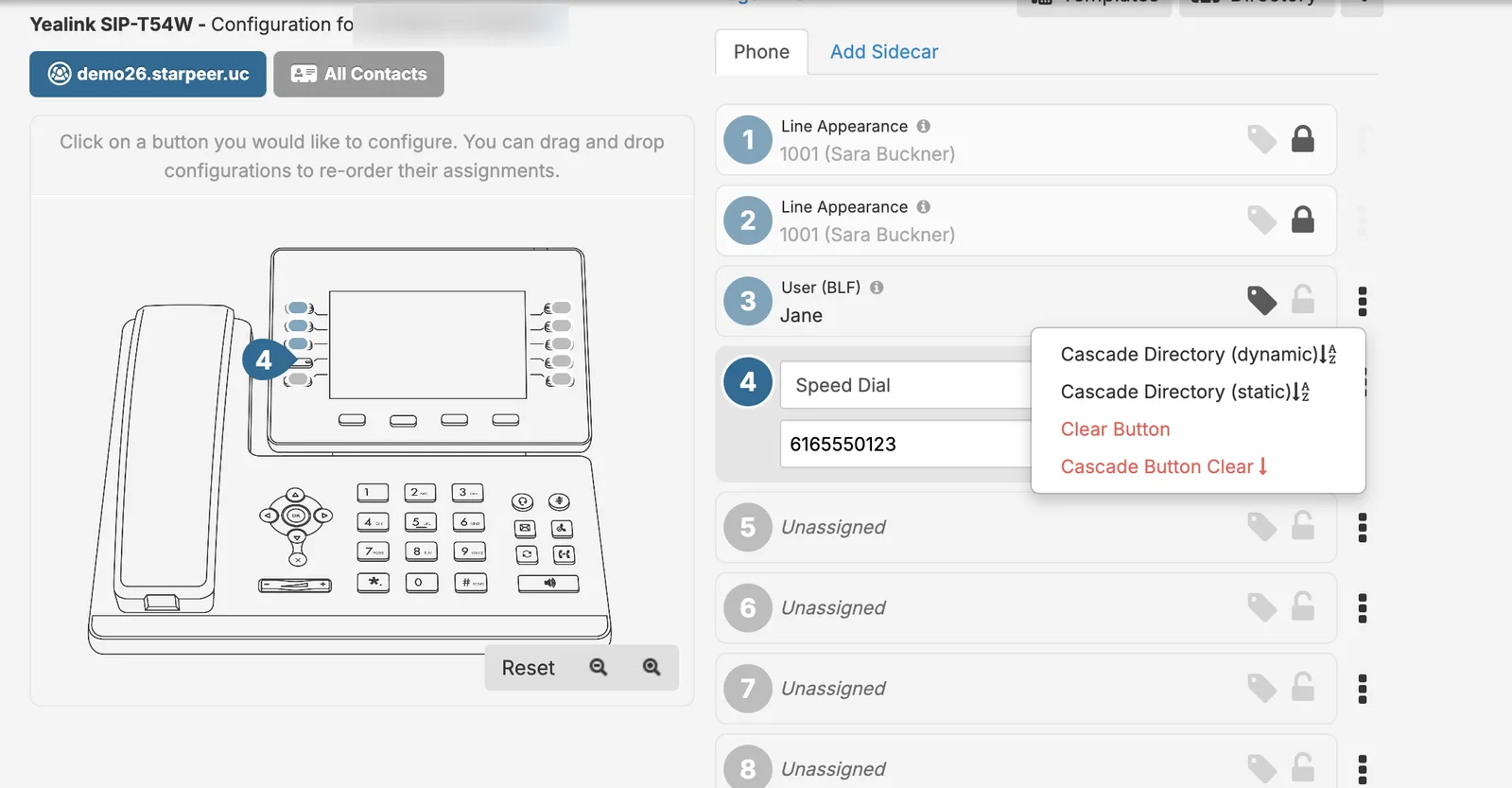
Click the three stacked dots to the right of the button, then click Clear Button. It now says Unassigned.
Find the button you want to start clearing from. Click its three stacked dots, then click Cascade Button Clear.
Cascade Button Clear clears the button you picked and every button after it. Make sure you start at the right one.
Part 5 · Sidecar buttons
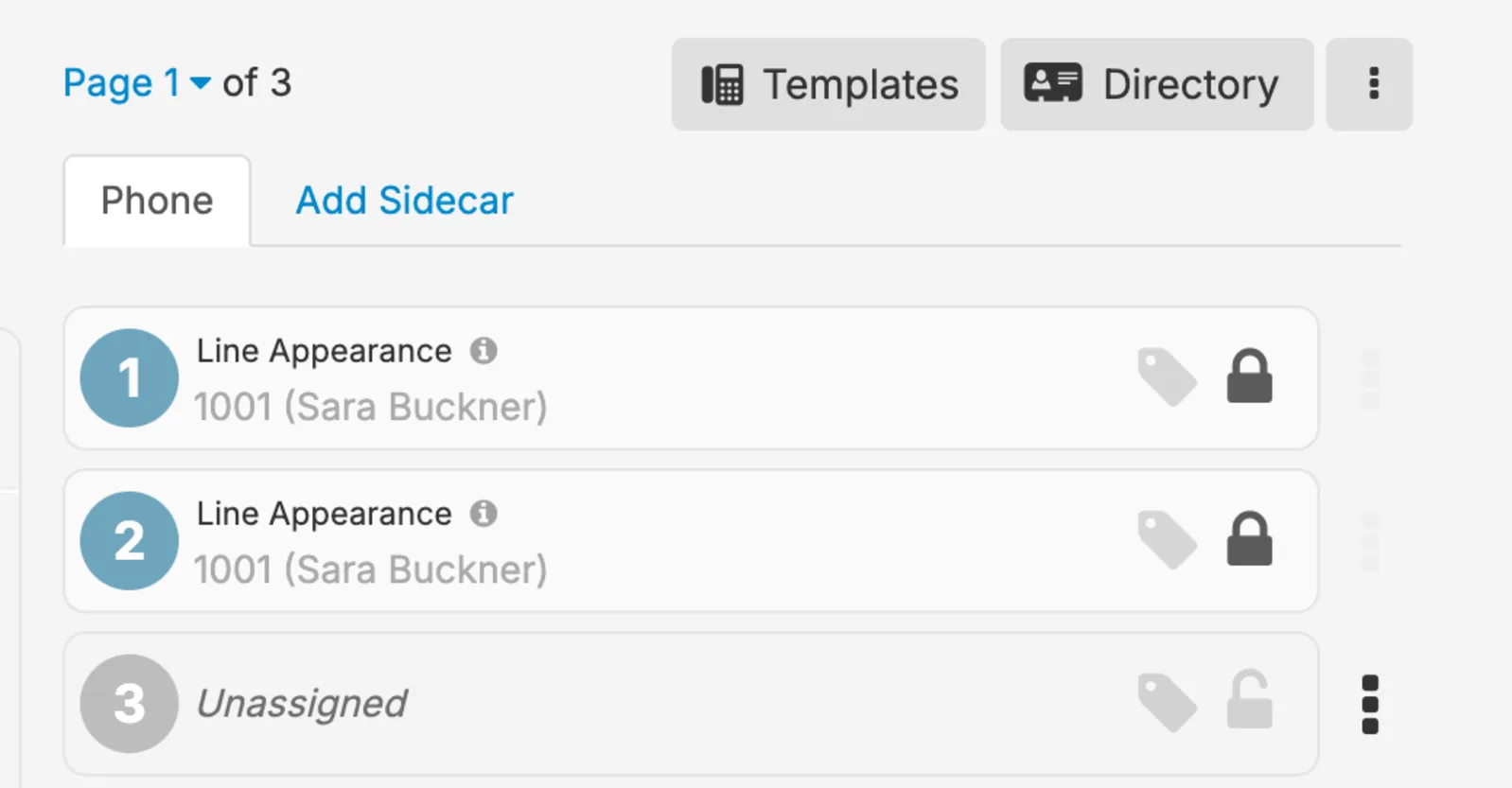
For a Grandstream 2616 or 2613, or a Yealink phone with a sidecar.
Step 1 of 2keep scrolling to advance
Above button 1 there are tabs. Phone holds the phone's own buttons. Click the sidecar tab next to it.
Only see Add Sidecar? Your sidecar isn't set up in the portal yet. Contact VanBelkum Support rather than adding one yourself.
Set up the sidecar buttons just like in Parts 2 to 4.
Part 6 · Save your changes
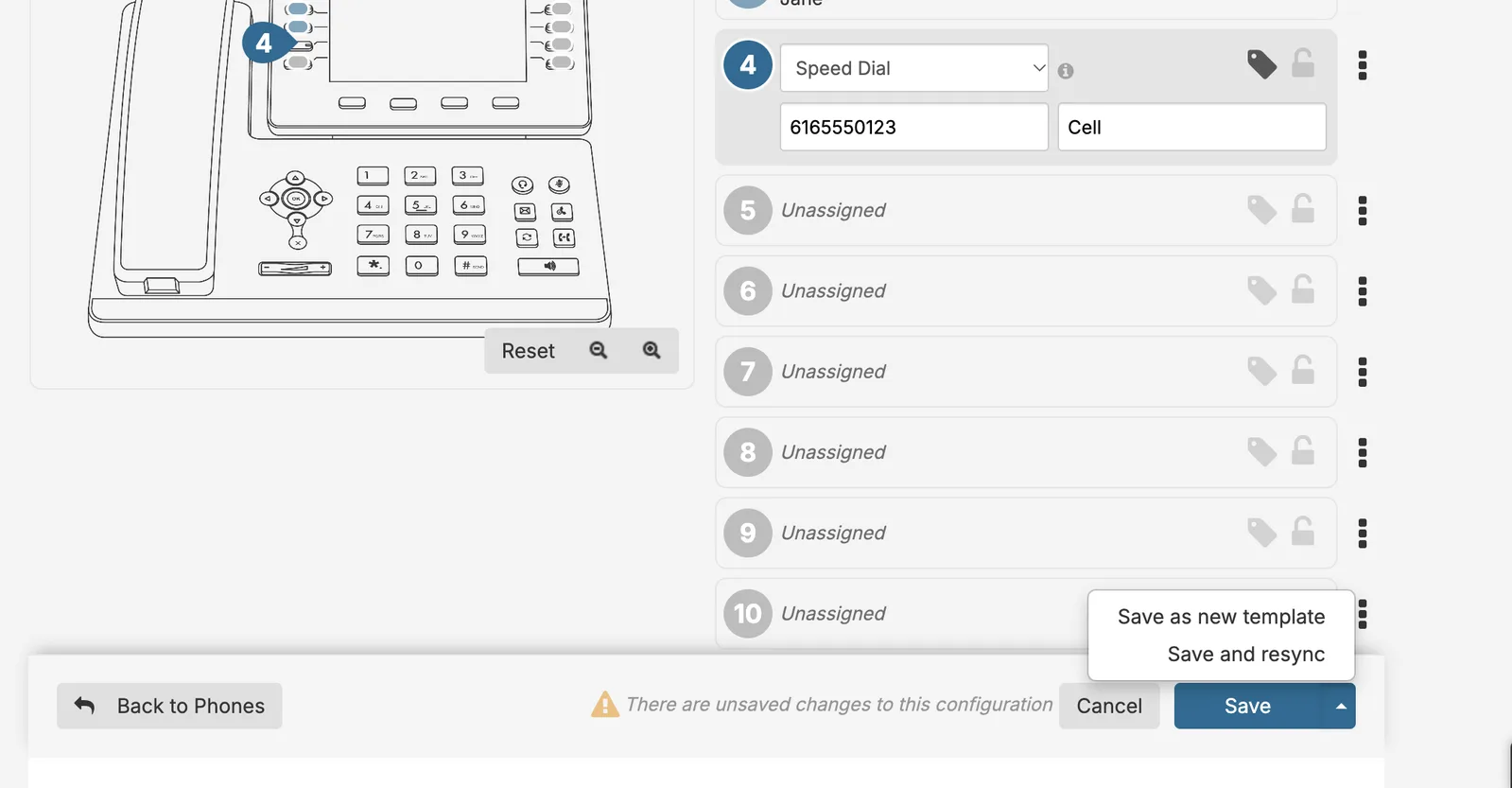
Save and resync updates your phone right away. Save updates it at midnight.
Step 1 of 2keep scrolling to advance
Click the small up arrow on the right side of the Save button, then click Save and resync.
This may restart your phone. If your computer gets its internet through the phone, it will be offline until the phone comes back on. Save your work first. The connection comes back on its own.
Click Save. Your changes go to the phone at midnight, and nothing restarts during the day.
Quick troubleshooting
If you can't log in to the portal, or your buttons still aren't right after these steps, contact VanBelkum Support.