
Open the Apps menu
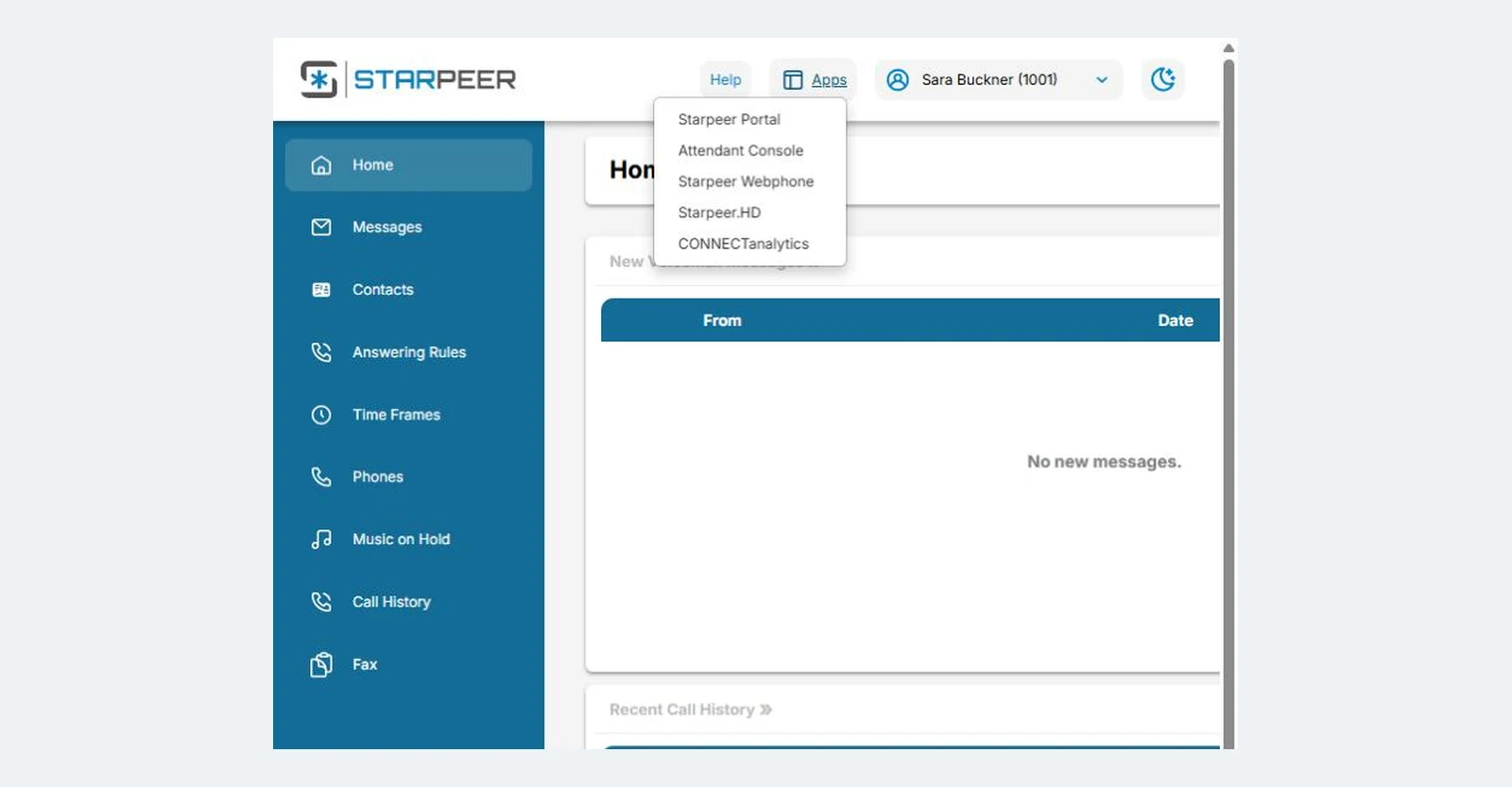
Log in to your Starpeer portal at spvoice.starpeer.com. At the top of the screen, next to Help, click Apps.
Starpeer UC · WebPhonespvoice.starpeer.com
The Starpeer WebPhone lets you make and take calls from your web browser, so you don't need a desk phone. Open it from the phone portal, set up your headset once, and check your mic before you call.
Before you start
Your Starpeer portal username and password. The WebPhone uses the same login; there is nothing separate to set up.
A headset gives callers the clearest sound. Your computer's built-in microphone and speakers also work.
The WebPhone runs in the browser. Use Chrome or Edge.
Part 1 · Open the WebPhone
The WebPhone opens from the phone portal you already use.
Step 1 of 2keep scrolling to advance
Log in to your Starpeer portal at spvoice.starpeer.com. At the top of the screen, next to Help, click Apps.
Click Starpeer Webphone in the menu. The WebPhone opens and shows a loading circle for a few seconds.
Part 2 · First-time setup
You only do this the first time you open the WebPhone, or after you change your browser settings.
Step 1 of 4keep scrolling to advance
Your browser asks if the WebPhone can use your microphone. Click Allow. If you click Block, callers won't be able to hear you.
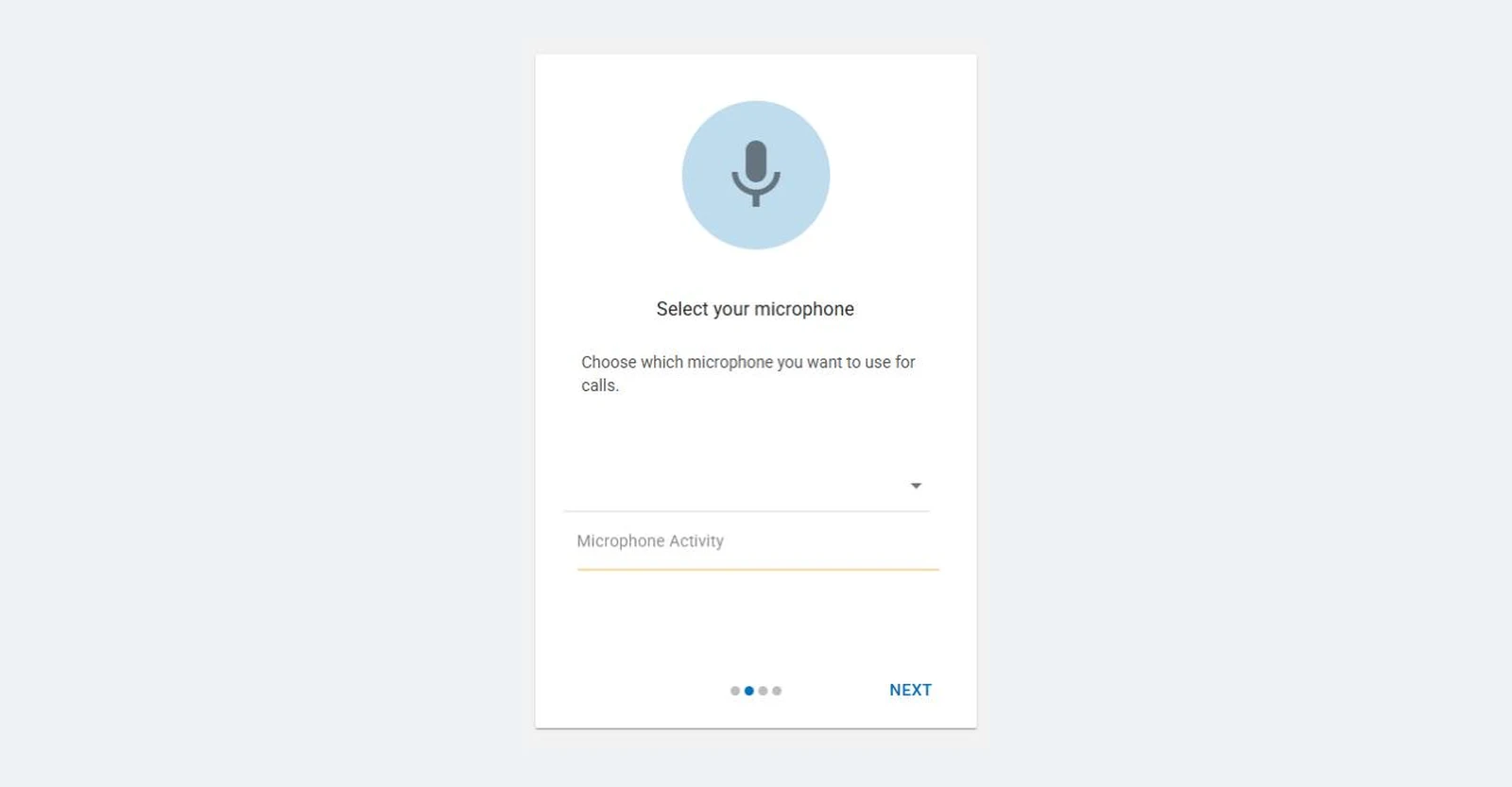
Use the drop-down list to pick the microphone for calls. If you have a headset, choose the headset. Say a few words: the Microphone Activity bar should move while you talk. Then click NEXT.
Use the Audio Output drop-down to choose where you'll hear calls and ring sounds, like your headset or your computer speakers. Use the Volume slider if it's too loud or too quiet. Then click NEXT.
If your browser asks to show notifications, click Allow. A pop-up then tells you when a call or message comes in, even while you're working in another tab. Click NEXT to finish.
Blocked them by mistake? Click the lock icon next to the web address and set Notifications to Allow.
Part 3 · Check your microphone
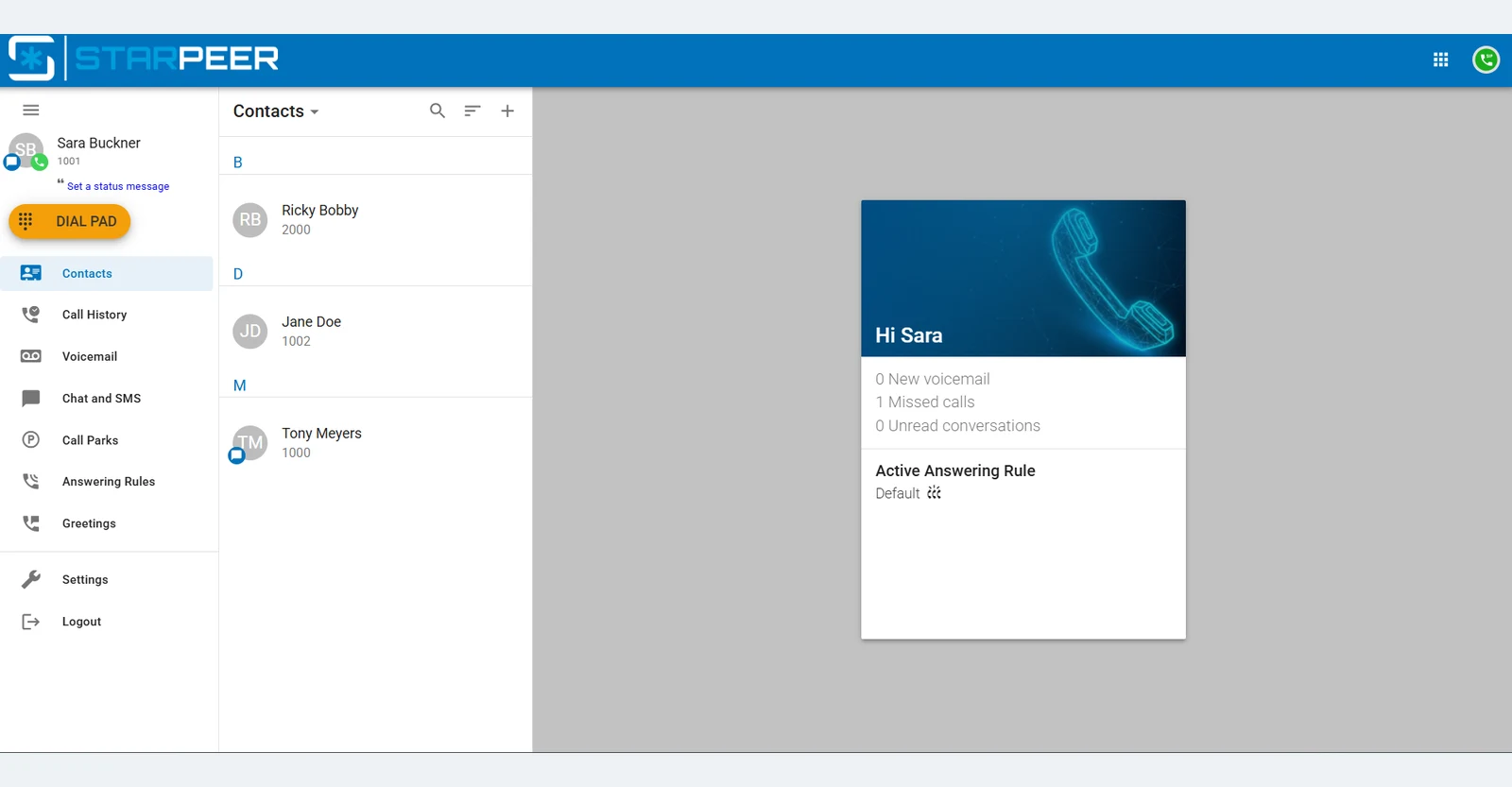
The WebPhone opens to your Contacts. Before you call, check the icon in the top-right corner.
Step 1 of 2keep scrolling to advance
A green phone icon in the top-right corner means the WebPhone can use your microphone. Click the orange DIAL PAD button on the left to make a call.
The WebPhone can't use your mic. To fix it:
Quick troubleshooting
If you can't log in to the portal, or the WebPhone still won't use your microphone after these steps, contact VanBelkum Support.
Want to compare the WebPhone with the ConnectWare and ConnectMobile apps? See Starpeer Mobile & Soft Phone.