
Open your welcome email
It comes from no_reply@starpeer.com with the subject Your new phone system account. It shows your Login, which looks like 2000@yourcompany.starpeer.uc, and your extension.
Starpeer · ConnectMobile · iPhone and Android
ConnectMobile puts your Starpeer extension on your cell phone. Answer and transfer calls, check voicemail, and move a call to your desk phone without hanging up.
Section 1 · Getting started
It comes from no_reply@starpeer.com with the subject Your new phone system account. It shows your Login, which looks like 2000@yourcompany.starpeer.uc, and your extension.
Create your password and your voicemail PIN. The link works for 48 hours after the email was sent. If it has expired, call us at (616) 301-7676 for a new one.
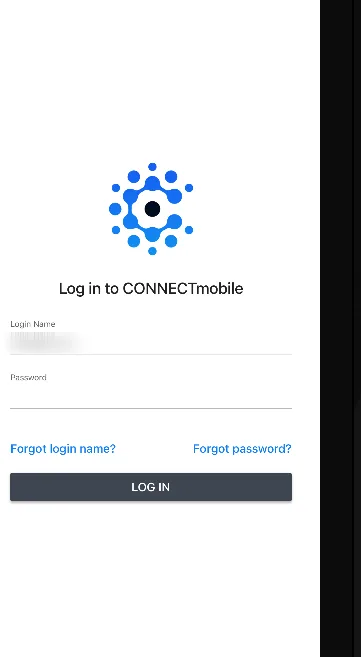
Get ConnectMobile from the App Store or Google Play. Sign in with the Login from the email and the password you just created. Forgot it later? Tap Forgot password? on the sign-in screen.
Section 2 · Contacts
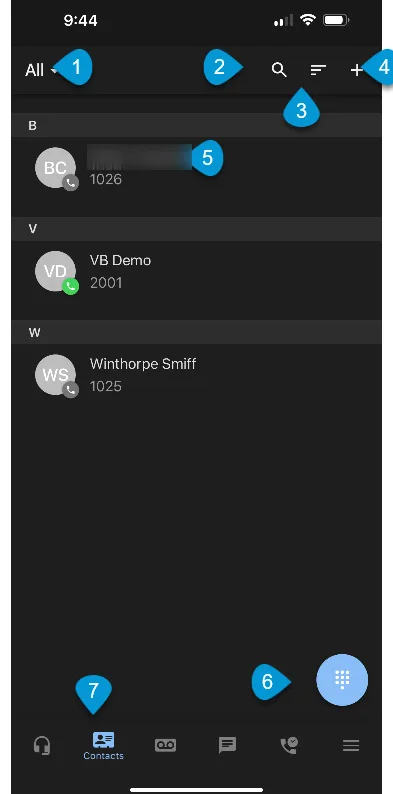
ConnectMobile opens on Contacts. Dial coworkers by extension or anyone else by number from here. The numbers in the steps match the blue markers on the screen.
Step 1 of 4keep scrolling to advance
1 Tap All to show only coworkers, shared contacts, or the contacts on your phone. 2 The magnifier searches by name, extension or phone number. 3 The lines icon sorts by name, extension, or who is online.
Tap + to add someone new. Contacts you add here also show up in the Starpeer portal after a sync.
Tap a name to call, chat, share or favorite them. Favorites move to the top of your list. The small dot on the picture shows whether that person is available.
6 The round blue button opens the dial pad, for any number or extension. 7 Tap the Contacts tab again to sync with the portal and pick up changes made there.
Section 3 · Calls
The usual buttons are all here: speaker, mute, hold, dial pad. ConnectMobile adds transfer, a second call, recording, and switching to another phone.
Step 1 of 5keep scrolling to advance
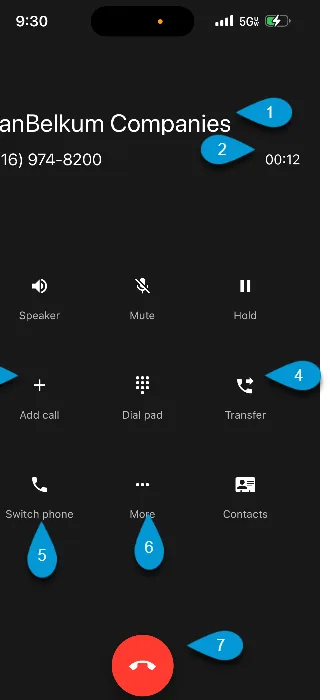
An incoming call shows as ConnectMobile Audio. Tap the blue check to answer or the red ✕ to decline. Once you answer, you see who called (1) and how long you've been talking (2).

Tap Add call to call a contact or a new number. The first call goes on hold. From there you can join both into a 3-way call.
Tap Transfer, then pick a contact or dial a number. Send it straight through (blind), or talk to the person first (assisted). To send the caller to someone's voicemail, dial * and then their extension, for example *105.
Walking back to your desk? Tap Switch phone and pick your desk phone. The call moves to that phone and stays connected.
6 More holds Record (if your company has recording turned on) and Hide, which tucks the call screen away so you can use the rest of the app. 7 The red button hangs up.
Section 4 · Voicemail
Voicemail has its own tab, the cassette icon in the bottom bar. A red dot on it means you have new messages.
Step 1 of 4keep scrolling to advance
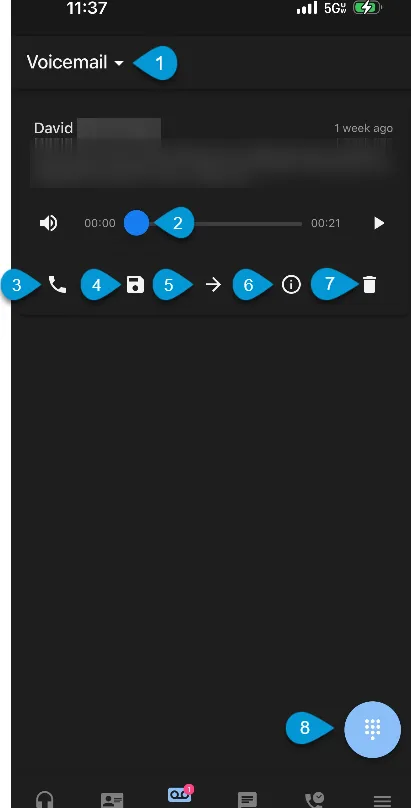
Tap Voicemail at the top to switch between New, Saved and Trash.
Each message shows who called, when, and a written copy of what they said. Tap play to listen, and drag the dot to skip ahead.
3 The phone calls them back. 4 The disk saves the message to Saved. 5 The arrow forwards it to someone else.
6 The i opens more options: add the caller to your contacts, or text them back if your company has texting. 7 The trash can moves the message to Trash. 8 The blue button opens the dial pad.
Section 5 · Call History
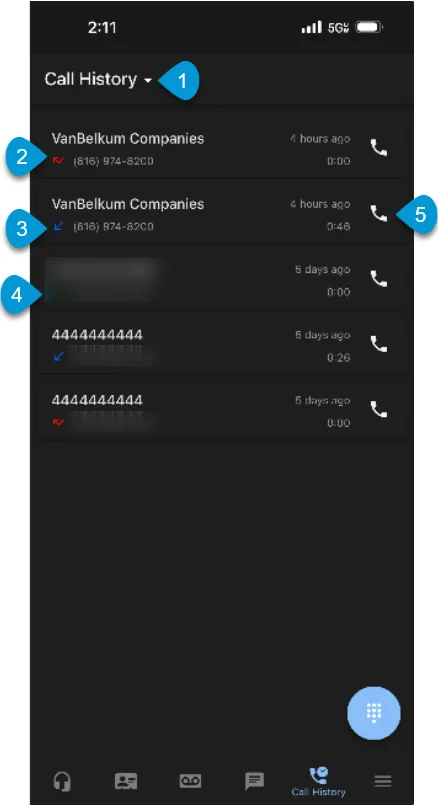
The Call History tab lists inbound, outbound and missed calls, newest first. The arrow next to each number tells you which kind it was.
Step 1 of 3keep scrolling to advance
Tap the Call History tab, second from the right. Tap the title at the top to filter the list.
2 A red broken arrow is a missed call. 3 A blue arrow pointing in is a call you answered. 4 A green arrow pointing out is a call you made. The time on the right is how long the call lasted.
Tap the phone icon on any row to call that number back.
Star codes
Forwarding, Do Not Disturb, call pickup and the other star codes work from the ConnectMobile dial pad, the same as on a desk phone. The full list is in the Star codes guide.
Quick reference
* and the extensionKnowledge check
The login is in your welcome email. You create the password yourself with the Complete Setup button in that email, within 48 hours.
Contacts.
Tap their name and choose Favorite.
Tap Transfer, then dial * and their extension.
Switch phone, then pick your desk phone.
Under More, on the call screen. It only appears if your company has recording turned on.
New, Saved and Trash.
A missed call.