
Dial the number
Type the phone number or extension. To fix a wrong digit, press the soft key under Clear.
Starpeer UC · Cordless phonesYealink W56H · W59R
Your Yealink cordless handset does what a desk phone does: transfers, hold, park, conference calls and voicemail. This guide shows you the keys to press, one task at a time.
Before you start
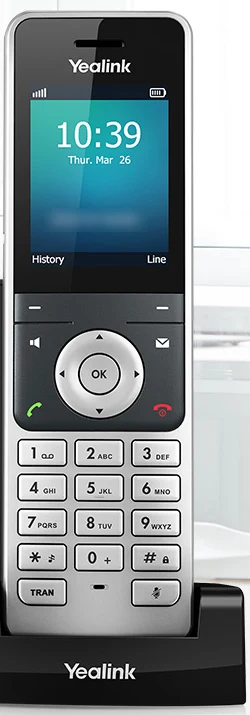
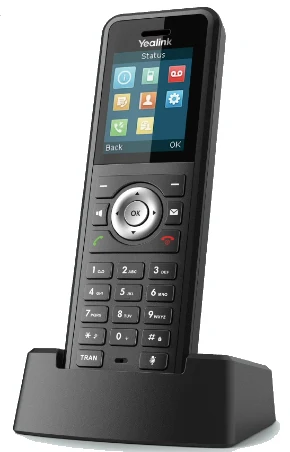
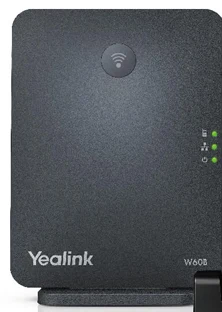
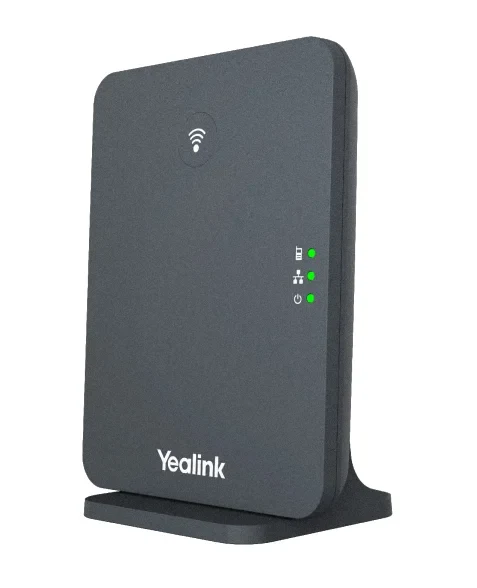
Your handset talks to a base that sits somewhere in the office. You only touch the base if something goes wrong. The steps in this guide are the same on the W56H and the W59R: both have the same keys in the same places.
The two white dashes just under the screen. What they do is printed on the screen above them, like Options on the right or Resume on the left.
The round OK key in the middle, with arrow keys around it. Use the arrows to scroll a list and OK to pick. From the idle screen, OK opens the menu.
The green key places or answers a call. The red key ends a call, goes back a screen, and turns the handset on and off.
Left of the arrows is the speaker key. Right of the arrows is the Message key, an envelope, for voicemail.
TRAN is bottom left, under the * key. Mute is bottom right, under the # key.
The rugged W59R also has its own volume keys and an emergency alarm button. Holding the alarm button for 2 seconds sets off the alarm. What the alarm does is set up on the base, so ask a tech before you rely on it.
Part 1 · Place and answer calls
Dial the full number or extension, then send it.
Step 1 of 4keep scrolling to advance
Type the phone number or extension. To fix a wrong digit, press the soft key under Clear.
Press the green key to place the call.
When you're done, press the red key or set the handset back in its charger.
Press the green key to talk on the handset, or the speaker key to answer on speakerphone.
Part 2 · Transfer a call
Stay on the line with the caller. Don't put them on hold first.
Step 1 of 3keep scrolling to advance
You speak to the person before you hand the call over.
With an announced transfer, the caller's number is not passed along.
The call goes over without you announcing it.
With a blind transfer, the caller's number is passed along, so the other person sees who's calling.
The call skips the person's phone and goes to their voicemail.
Part 3 · Mute, hold and park
Hold keeps the call on your handset. Park puts it where any phone in the office can pick it up.
Step 1 of 4keep scrolling to advance
During a call, press Mute, bottom right under the # key. The caller can't hear you. Press Mute again to talk.
Press the soft key under Options, on the right. Use the arrows to scroll to Hold and press OK. The caller hears music or a message if your company has one set up.
To pick the call back up, press the soft key under Resume, on the left.
Stay on the line with the caller.
From any phone in the office, dial the park number you heard, like 7001, and press the green key. You're connected to the caller.
Part 4 · Conference calls
Add one more person to the call you're on, or have everyone dial into the conference bridge.
Step 1 of 2keep scrolling to advance
Stay on the line with the first person.
The conference bridge holds up to 10 people. Everyone dials in the same way.
Don't know your bridge PIN? Call a tech at (616) 301-7676.
Part 5 · Voicemail
Listening by phone asks for your voicemail PIN.
Step 1 of 5keep scrolling to advance
The light on your handset blinks and a voicemail icon shows at the top of the screen. You hear a broken, stuttering dial tone. And a copy of the message lands in your email.
Press the Message key, the envelope. Arrow down to your extension and press OK. Enter your PIN, then follow the prompts.
From any phone in the office, dial 5001 and then your extension. For extension 205, dial 5001205. Enter your PIN, then follow the prompts.
Log in to the Starpeer phone portal at spvoice.starpeer.com to hear and manage your messages.
Everyone records their own greeting. Press the Message key, enter your PIN, press 6, and follow the prompts.
For the company's main greeting and holiday hours, see the greetings guide.
Part 6 · Do Not Disturb, history and contacts
These live in the handset's menu. Press OK from the idle screen to open it.
Step 1 of 3keep scrolling to advance
Do Not Disturb turns away every incoming call until you turn it off.
Follow the same steps to turn it off. If your phone stops ringing and you don't know why, check for that icon first.
Your handset keeps lists of missed, placed and received calls.
Part 7 · Power, charging and range
The handset only works while it can reach the base, or a repeater if your office has one.
Step 1 of 3keep scrolling to advance
To turn the handset on, press the red key or set it in the charger. To turn it off, hold the red key down on the idle screen.
Set the handset in its charger when you're not using it. The light on the handset is solid red while it charges and goes off when it's full. The battery icon at the top of the screen shows how much is left.
If the handset won't turn on, leave it in the charger for a while, then press the red key.
The bars at the top left of the screen show how well the handset hears the base. Yealink rates it at up to 50 m indoors, in ideal conditions. If calls break up or the bars drop, move closer to the base.
Quick troubleshooting
Call a VanBelkum tech at (616) 301-7676. Have your extension handy.