
Pick up, dial, send
- Lift the handset, press Speaker, press the Headset key, or press your line key. You hear a dial tone and the line key turns red.
- Dial the number.
- Press Send or the Dial softkey.
Starpeer UC · Desk phonesGrandstream GRP2616
What each key and light on your Grandstream desk phone does, how to make, transfer and park calls, and the Starpeer codes that work from any phone.
Your phone at a glance
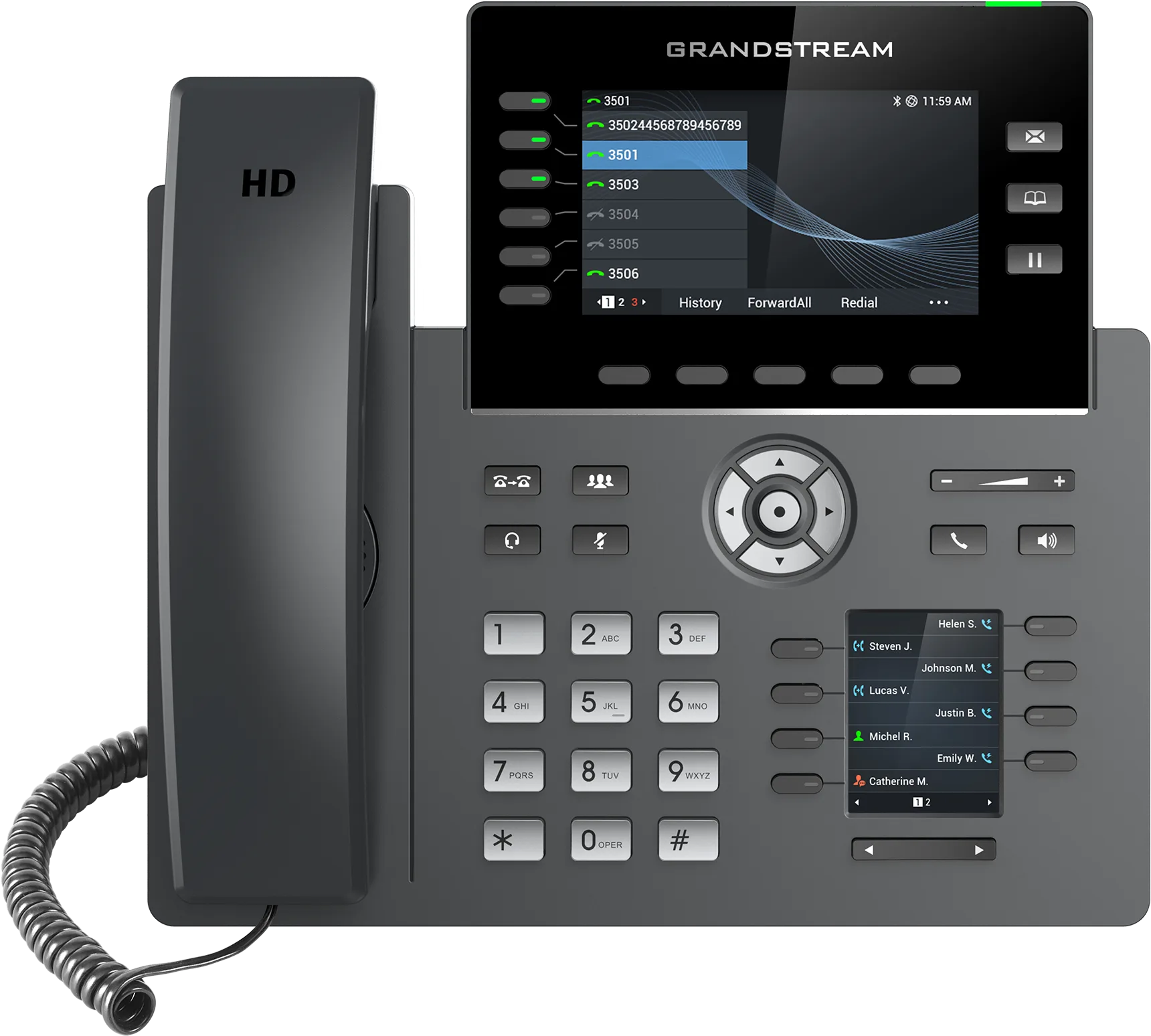
Your Starpeer desk phone is a Grandstream desk phone: a main color screen, programmable keys on both sides, and a second screen (the "sidecar") for coworker and queue buttons. Names below are examples.
| Area | Where it is | What it does |
|---|---|---|
| Line keys | Left of the main screen | Your own line (Jordan Ellis), plus All Page, Park 2, Park 3 and Page All |
| Softkeys | Row of 5 keys under the main screen | Change with what you're doing; at idle: History, DND, Redial, Features |
| Message / Contacts / Hold | Right of the main screen | Voicemail, directory, put a call on hold |
| Navigation pad | Center | Arrows scroll menus and switch calls; center button selects |
| Volume | Top right of the keypad | Ring volume when idle, call volume during a call |
| Transfer, Conference, Headset, Mute | Left of the navigation pad | Call-handling keys |
| Send, Speaker | Right of the navigation pad | Dial what you typed; speakerphone on/off |
| Sidecar | Small screen right of the keypad | Coworkers and call queues, 3 pages of buttons |
If your Grandstream looks different, the keys work the same way; call a tech if you can't find one.
Reading the lights and the sidecar
A key's light tells you the status of the line, coworker or parking spot it watches. A coworker key is called a BLF (busy lamp field) key.
| Light | On your own line key | On a coworker or park key |
|---|---|---|
| Off | Key not set up | Not monitored, or no status |
| Solid green | Line free, ready for a call | Coworker available / park spot empty |
| Blinking green | Call on hold, press to resume | Not used |
| Solid red | Line in use: you're on a call, or on Do Not Disturb | Coworker on a call or on Do Not Disturb / call parked in that spot |
| Blinking red | Not used | Coworker's phone ringing, press to pick it up |
The blinking green message light means you have voicemail. Exact BLF colors follow your Starpeer button setup, so confirm with your administrator if a key behaves differently.
The sidecar
The sidecar holds coworker and queue keys. A green person icon next to a name means that coworker is available. Queue keys (for example Sales and Service) show the call queues you belong to.
Press a coworker's key to call them.
During a call, press Transfer, then a coworker's key to send the call to them.
Use the left and right arrows under the sidecar screen to move between pages 1, 2 and 3. The highlighted number is the page you're on.
Part 1 · Making, answering and ending calls
The keys you use on almost every call.
Step 1 of 9keep scrolling to advance
Press the Redial softkey. The phone uses the same line as your last call.
Press their key on the sidecar.
Lift the handset, press Speaker, press the Headset key, or press the flashing line key.
Hang up, or press the EndCall softkey.
During a call, press Mute to turn your microphone off. Press it again to turn it back on.
Press the volume key while idle to change the ring volume, or during a call to change call volume.
Press the Headset key to switch to a connected headset. Press Speaker to turn the speakerphone on or off.
Part 2 · Hold, transfer and conference
Send a call straight through, or introduce the caller first.
Step 1 of 4keep scrolling to advance
Press the Hold key. The line key blinks green. Press the blinking line key to pick the call back up.
While the second call is still ringing, press Cancel to stop it. Once they answer, press Split to talk to them alone while the first caller waits.
Need more than 3 people? Use the Starpeer conference bridge in Part 5.
Part 3 · Park, paging and Do Not Disturb
The park and page keys sit to the left of the main screen.
Step 1 of 3keep scrolling to advance
No park key? Use the Starpeer park code in Part 5.
Press All Page or Page All, wait for the tone, then speak. Hang up or press EndCall when you're done.
The two keys reach different groups of phones. Check with your administrator which one reaches which.
Press the DND softkey. Calls go straight to voicemail until you press DND again. Look for the DND icon on the screen.
Shortcut: when the phone is on the hook and not in use, pressing Mute also turns on Do Not Disturb. Press Mute again to turn it off.
Part 4 · Call history and contacts
Call back a missed call, or look someone up.
Step 1 of 3keep scrolling to advance
Press the History softkey to see missed, received and dialed calls. The red badge shows how many calls you missed. Scroll to a call and press Dial to call back.
Press the Contacts key, the book icon to the right of the main screen between the Message (envelope) and Hold keys. You can also press the center button (Menu) and choose Contacts.
From the idle screen, start typing a name on the keypad (4-7-3 for "Gre…") or the first digits of a number. Pick the match with the arrows and press Dial.
Part 5 · Voicemail and Starpeer codes
When the message light blinks, press the Message (envelope) key and follow the voice prompts.
Press the Message key, enter your PIN, press 6 and follow the prompts. The greetings guide has more.
Dial 5001 followed by your extension, then enter your PIN.
Press Transfer, dial * and their extension (for example *1001), then press Transfer.
Press Transfer, dial 7000 and listen for the park spot (7001, 7002, 7003 and so on). Press Transfer. To pick the call up, dial that park number from any phone.
Dial 9000, enter the bridge PIN, say your name and press #.
The codes at a glance
| Dial | What it does |
|---|---|
| * + extension | During a transfer: send the caller to that person's voicemail |
| 5001 + your extension | Your voicemail, from a different phone |
| 7000 | During a transfer: park the call |
| 7001, 7002, 7003… | Pick up a parked call |
| 9000 | Conference bridge, up to 10 people |
These codes are the same for every Starpeer customer.
Part 6 · Rebooting the phone
Reboot the phone if it freezes, a key stops updating, or your administrator asks you to. Make sure you're not on a call first.
Step 1 of 4keep scrolling to advance
Press the center button on the navigation pad to open the Menu.
Use the arrow keys to scroll over to Reboot.
Press the center button to select it. The screen asks "Reboot now?" Select Yes.
Wait about a minute while the phone restarts. It's ready when the Starpeer screen and your keys come back.
Don't unplug the phone while it restarts. Never choose Factory Reset: it erases the phone's settings and needs your administrator to set it up again.
Quick reference and troubleshooting
| I want to… | Press |
|---|---|
| Call back the last number | Redial |
| Put a call on hold / pick it back up | Hold / the blinking line key |
| Send a call without talking first | Transfer → number → BlindTrnf |
| Introduce a call first | Transfer → number → AttTrnf → Transfer |
| Add a third person | Conference → number → Send → ConfCall |
| Park a call | Park 2 or Park 3 |
| Stop calls ringing | DND, or Mute while the phone is idle |
| Look up someone's number | Contacts (book) key → Local Phonebook → Dial |
| Check voicemail | Message (envelope) key |
| See the next sidecar page | Right arrow under the sidecar |
Call a VanBelkum tech at (616) 301-7676. Away from your desk? The WebPhone guide shows how to make and take calls from your computer.